Resizing Your Illustrator Artboard to Fit Your Image
· Software development
If you want to resize your Adobe Illustrator artboard so that it matches the bounding edges of your image, here’s how in 3 simple steps.
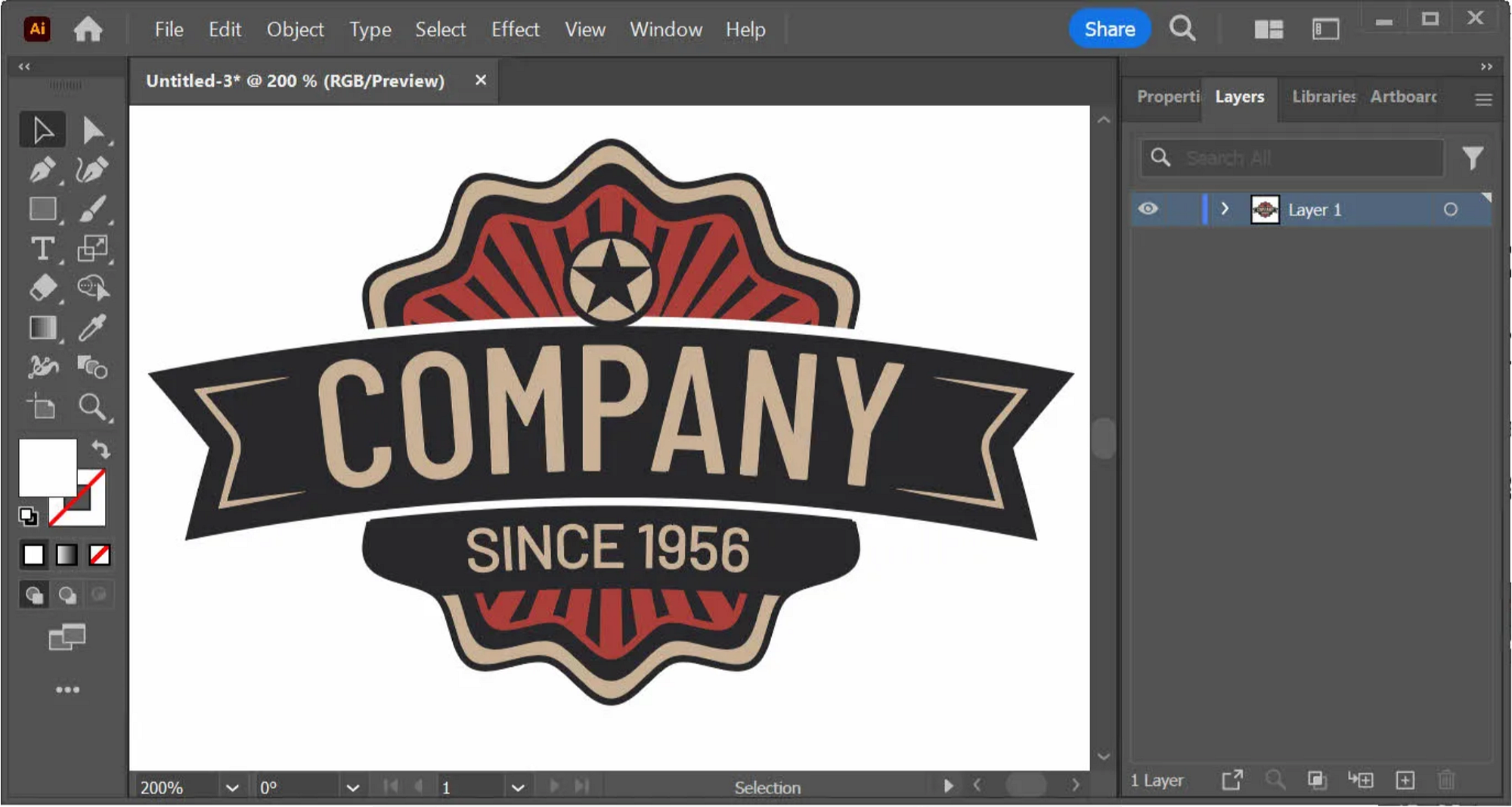
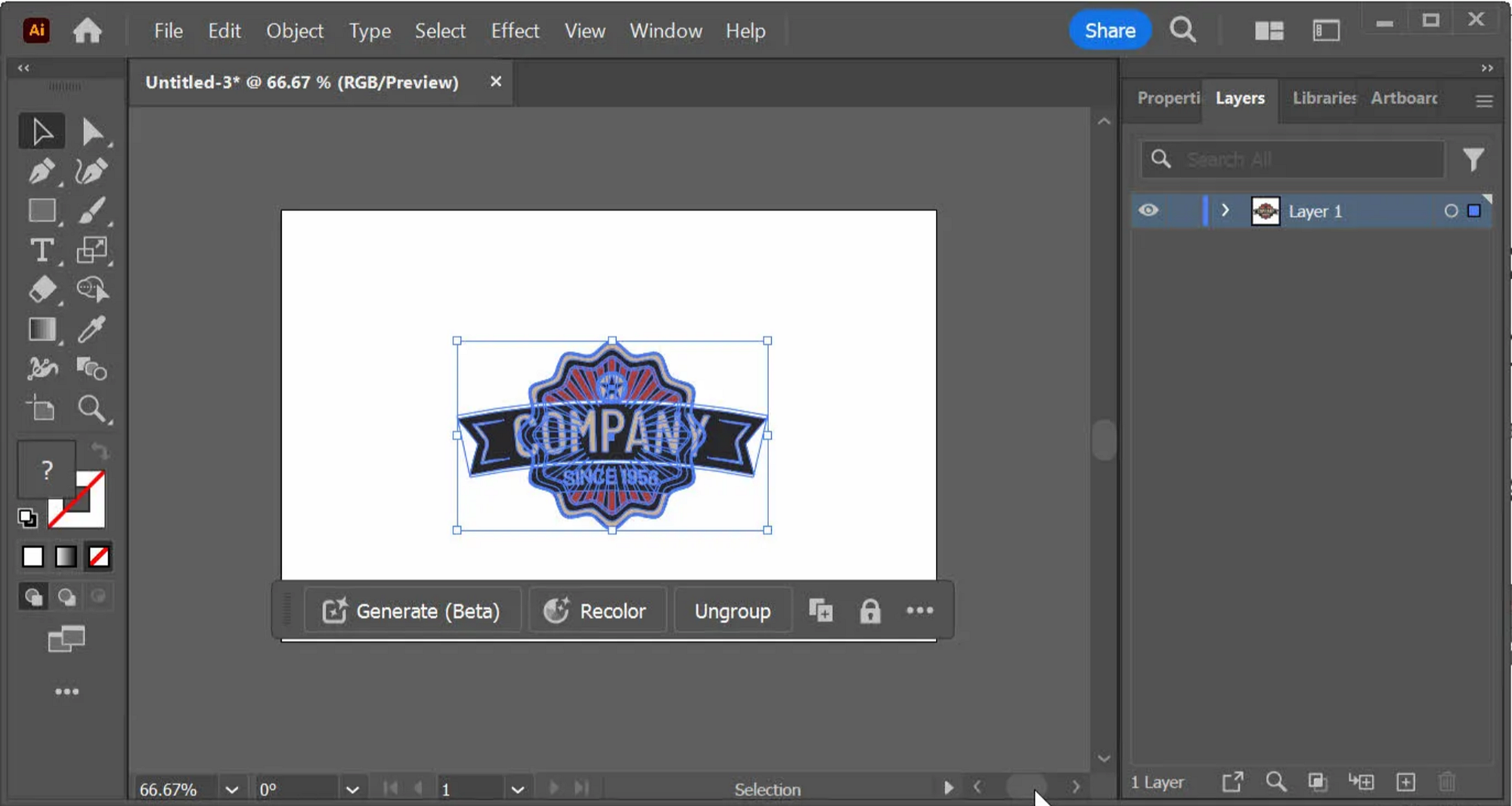
Step One: Select Objects on the Artboard
Zoom out a bit and use the selection tool to select the object or objects on the that you wish to crop to.
Step Two: Double-Click the Artboard Tool in the Tools Panel
Double-click the artboard tool in the tools panel (indicated in the image below).
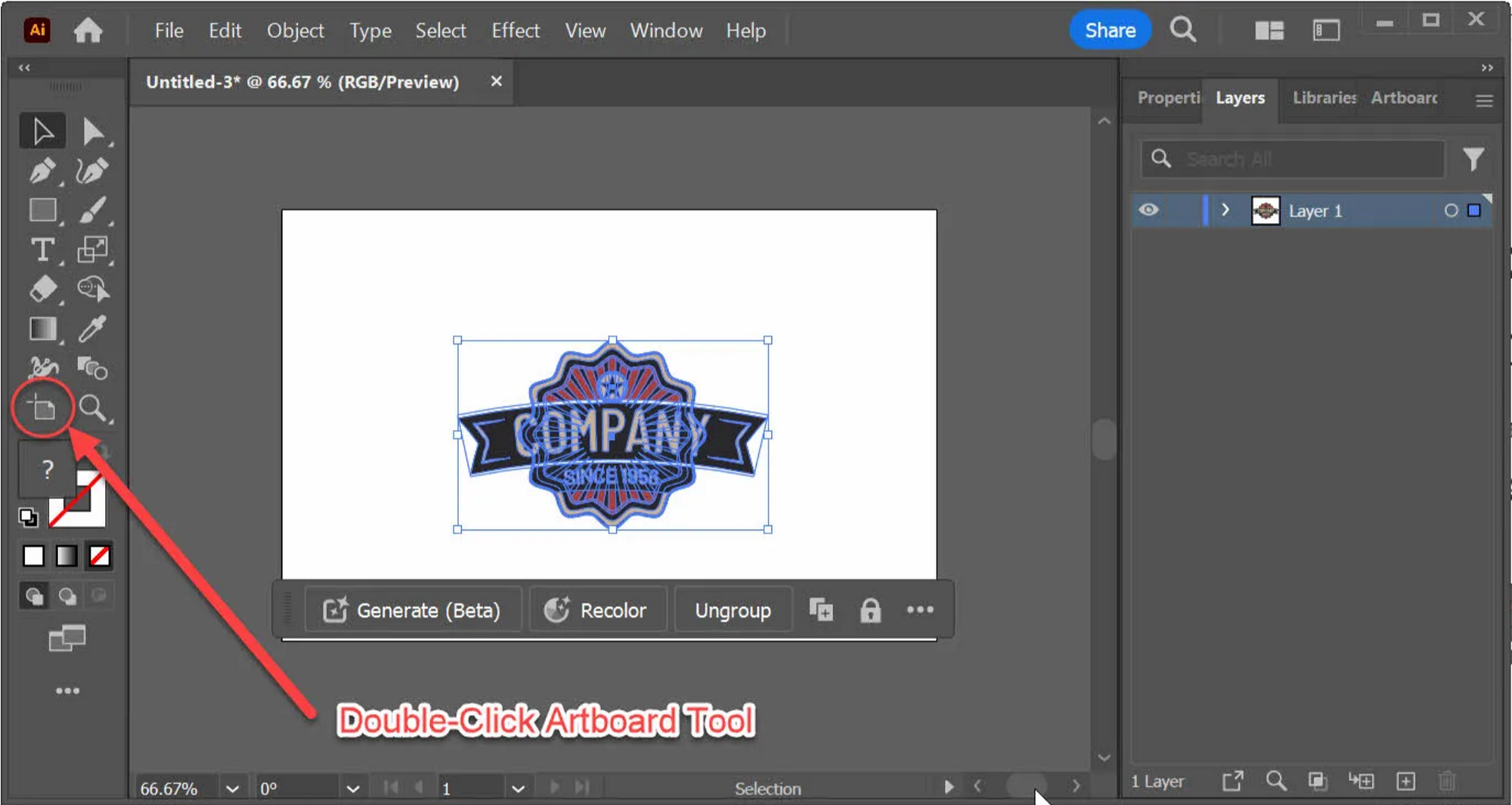
If the artboard tool is not visible in your tools panel, press SHIFT + O; controls should appear around the artboard, and the tool should then be visible, and you can double-click it.
This will bring up the Artboard Options dialog as shown below.
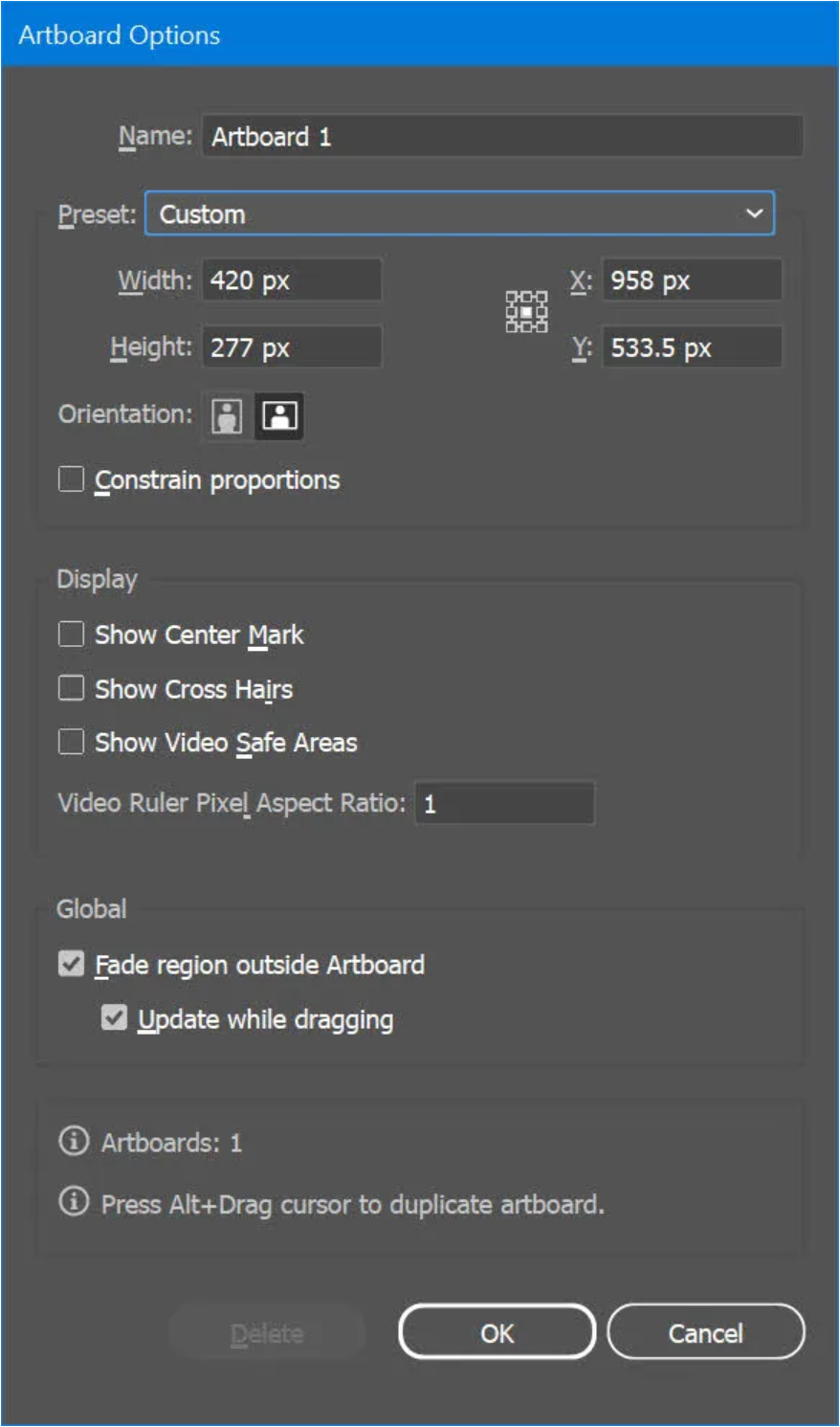
Step Three: Select Fit to Artwork Bounds
In the Preset drop-down, choose Fit to Artwork Bounds or Fit to Selected Art. Fit to Selected Art will be enabled if you have selected some, but not all of the objects on the artboard. In this example, we’ve selected all, so we can only choose Fit to Artwork Bounds.
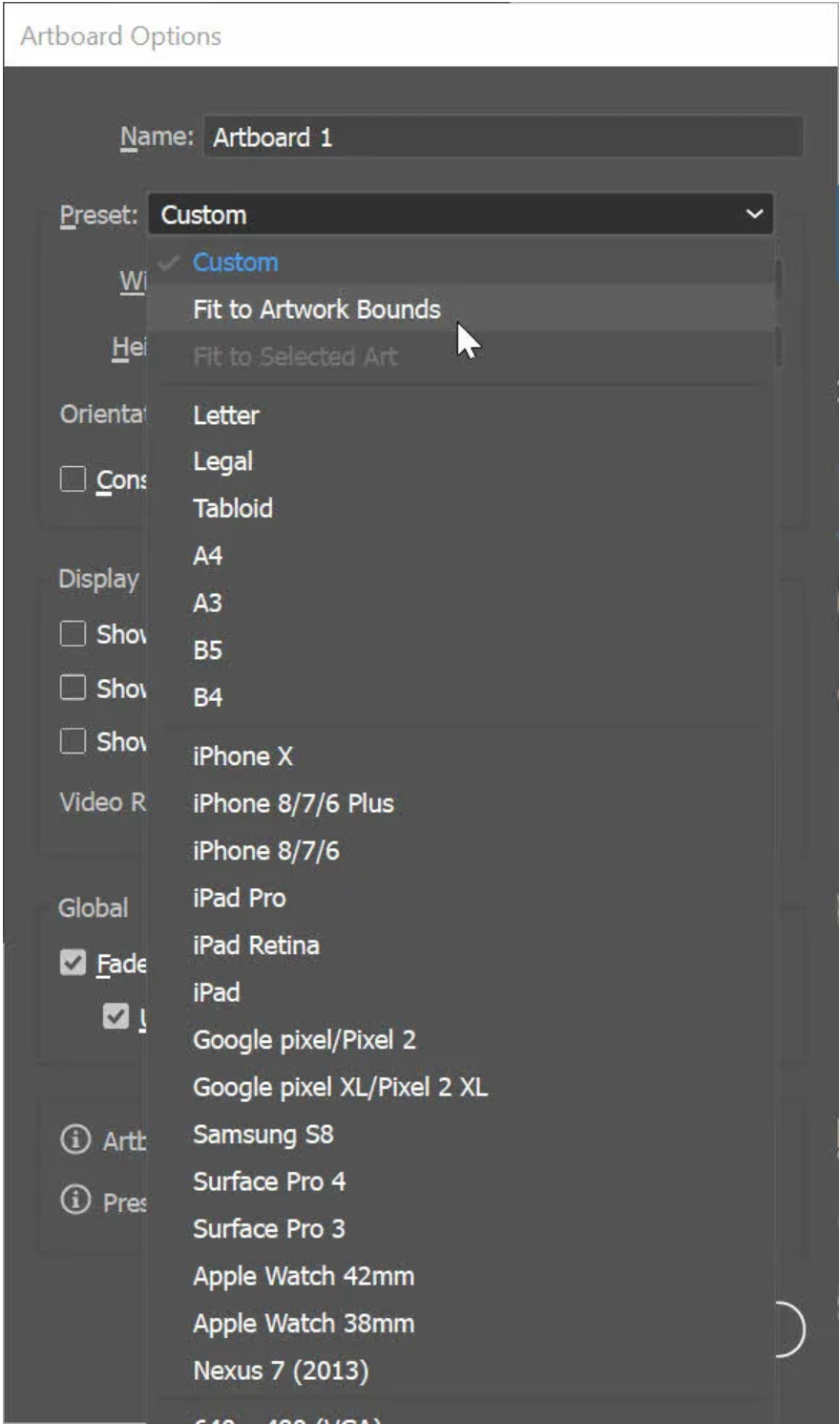
Click the OK button and voila — the artboard is then cropped to fit the selected artwork bounds.
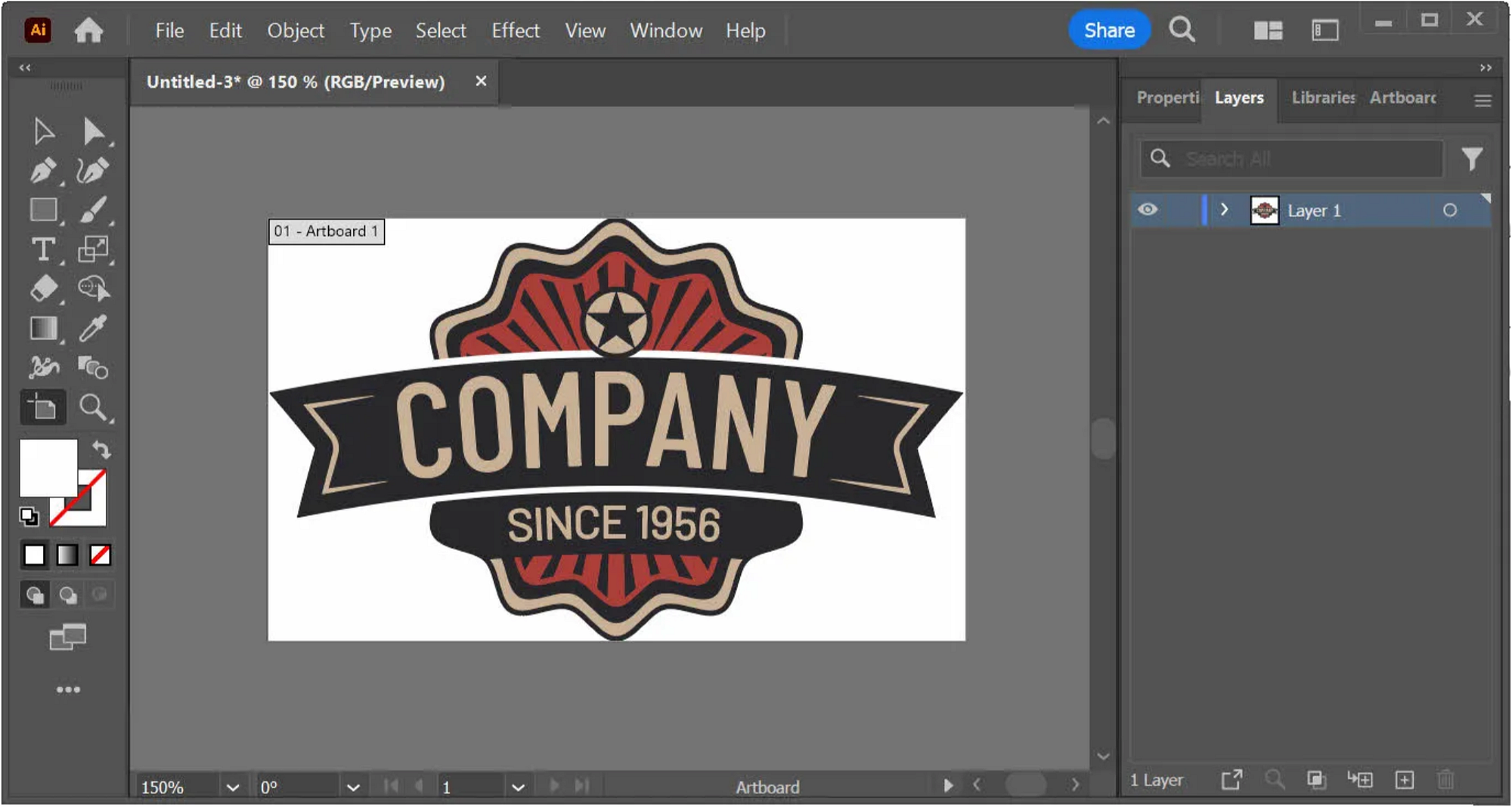
Likewise, if we had selected only one or some, but not all, objects on the canvas and then chosen to Fit to Selected Art, the artboard would have been cropped around only the selected object(s).
First published on Medium on .